How to view submissions
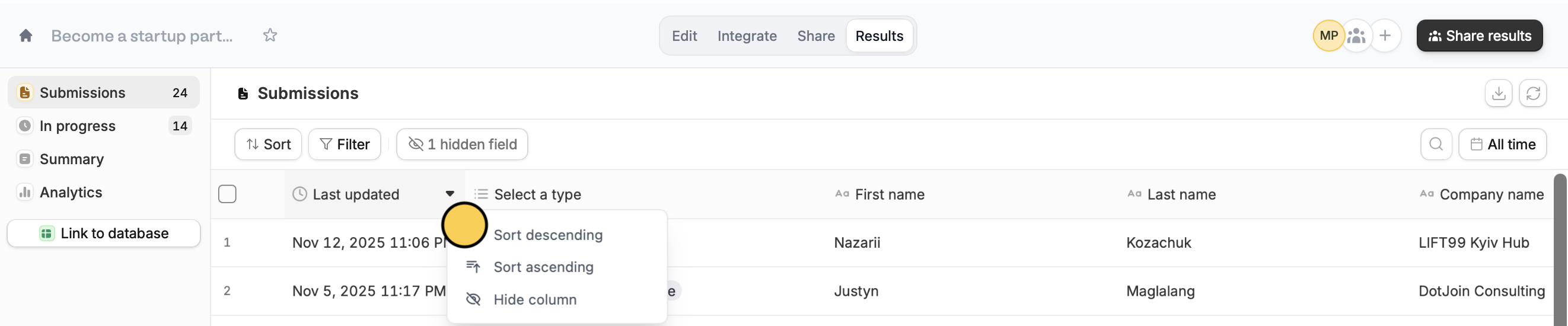
Open your form, and clickResults on the top menu. Sort responses or hide columns by hovering over a column header, followed by clicking .
Filter submissions
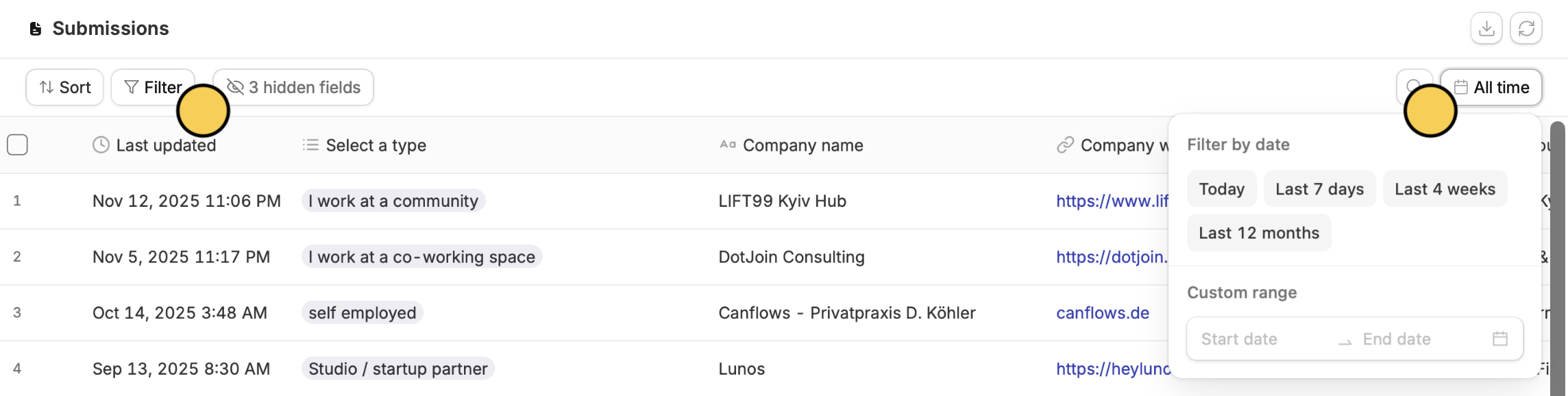
Filter to narrow responses based on a specific preference. Click All time to change the date range you’re viewing.
Export submissions
Click the download icon in the top right to export all of your responses in a formatted CSV respective of the filters.
Shortcuts
⌘ + ForCtrl + Fwhile clicking on any cell to search through your entries⌘ + CorCtrl + Con a cell to copy its contentsDouble-click any cellto enlarge its contents (helpful for long inputs)
View individual submissions
Hover over a cell and click to view the answers and submission details. Here, you can comment and tag your teammates.
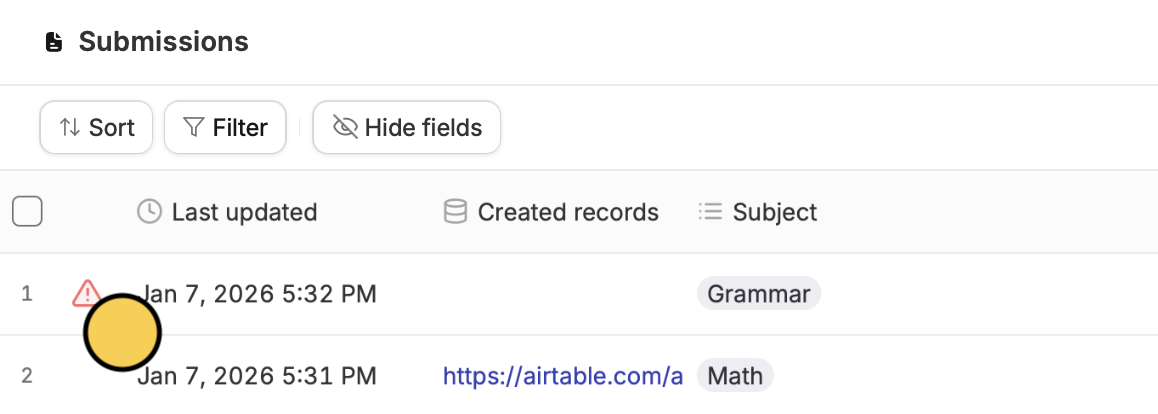
Check misconfiguration errors
Fillout alerts you of any misconfiguration errors. For example, you recently changed a field type in your Airtable/Notion database, but forgot to change it in Fillout.